Fake 3D pieces from my upcoming game
I'm making a game about building objects out of colorful pieces by stacking and layering them together. And that game is fully 2D. Though 2D it might be, it doesn't look flat — there is depth, height to the presentation. All the while the assets remain just sprites.
There is of course nothing particularly fantastic about drawing a sprite that has baked-in depth, a stereo form. You just do it! The challenge in this specific case comes from the fact that pieces need to be able to rotate, flip, realistically connect to each other with perspective in mind.
Last week I have finally arrived to the stage in my project where I needed to add new types of pieces at scale, many of them, all configured and polished. This led me to refine my workflow, and with that accomplished, I thought I'd share the process of creating one such piece. Follow at home!
# Rules and limitations
All good workflows start with defining a few ground rules. While it's not unfeasible to make 2D objects rotate freely with correct stereo transformations, it would require quite a bit more work to set up. So early on I decided on drawing every rotated state manually. After a bit of experimenting, I decided that there should be 12 unique positions, with 30 degree intervals.
I also decided on the grid size. All pieces would have connection points (later turned into holes for balls), and it made sense to establish some kind of fixed grid to align these points to. Importantly, though, pieces do not need to fit within the grid cells. I've decided that pixel perfect alignment of neighboring pieces would be more trouble than worth for this game.
Finally, each piece must have at least some symmetry. That doesn't mean that there has to be a frame where the piece is perfectly level horizontally or vertically, demonstrating such symmetry. Just that the nature of the piece must be symmetrical. This is necessary because the ability to flip pieces is based on rotation. If a piece is not symmetrical, then no amount of rotation would be able to resolve the flip. This can be solved by drawing flipped sprites as well, but I thought about this pretty late and the work necessary to achieve that was just too much at that point.
# Creating the spritesheet
With the rules established, I made the simplest 1x1 flat piece with one hole which I can also use as a reference. Let's use its shape as a starting point:

All flat pieces have rounded corners and a protruding frame around them (defined here with the darker shade of gray). These design decisions must be preserved for the new piece as well, no matter what shape it has. Fortunately, all shapes use straight lines, fixed corners, and, as mentioned before, feature symmetry. Makes things a lot easier to draw!
Our new piece is going to take about the same size as the 2x2 square, so next I extend the shape to fit that size.
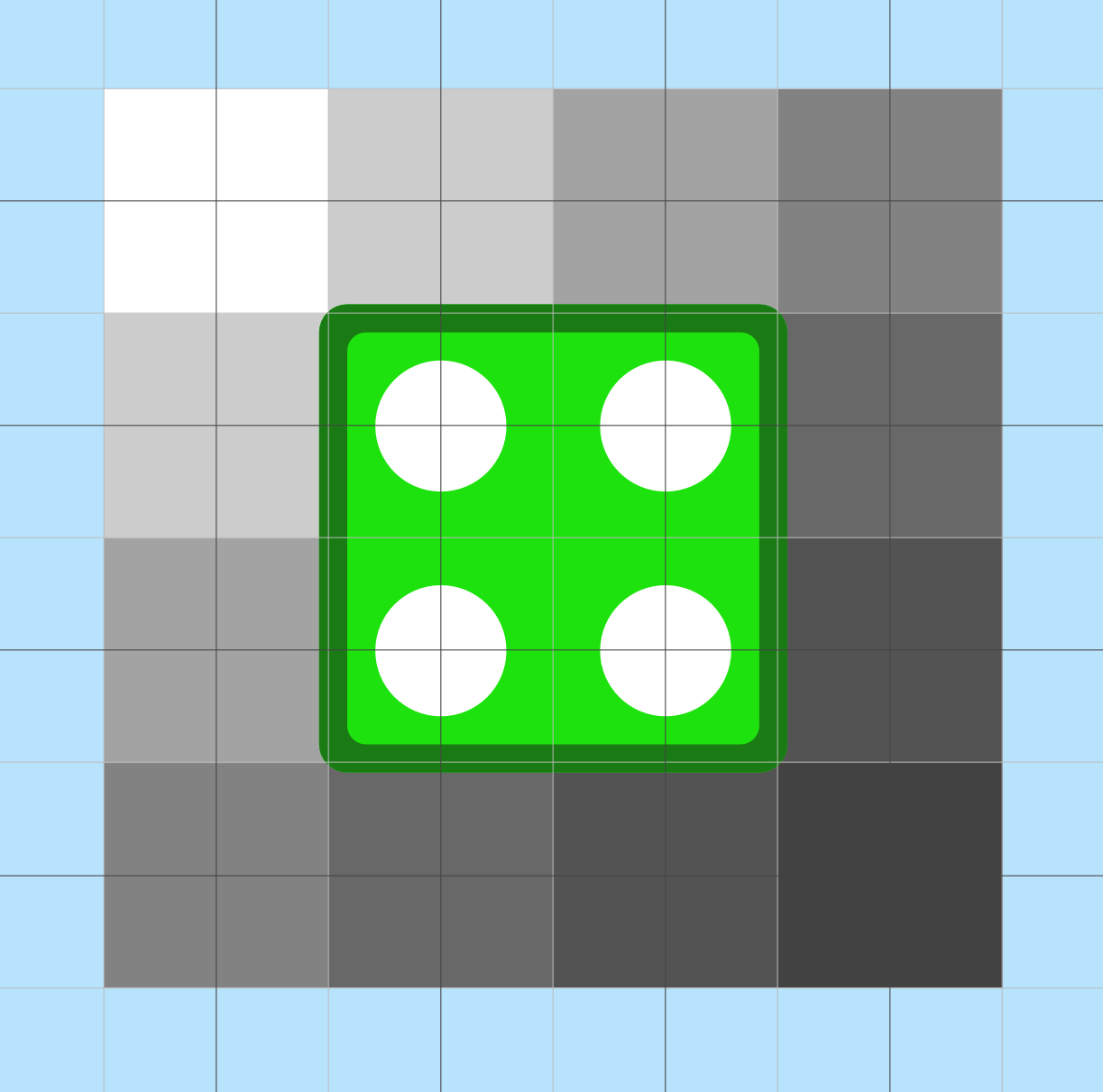
This would be a rather boring shape, although quite practical. But I want to make things more interesting for this piece. Let's cut 2 of its opposing corners. This removes two holes, but makes the shape more unique. I use various extra shapes in my drawing app to ensure alignment and consistent thickness when things don't align with the cardinal directions of the grid anymore.
Here's one: it's the same shape as the basic piece we used before. Rotating it 45 degrees gives me a perfect reference for where the diagonal line should go relative to the nearby hole. Perfect alignment is not critical here — as long as it's within a fraction of a pixel, the final result won't show it.
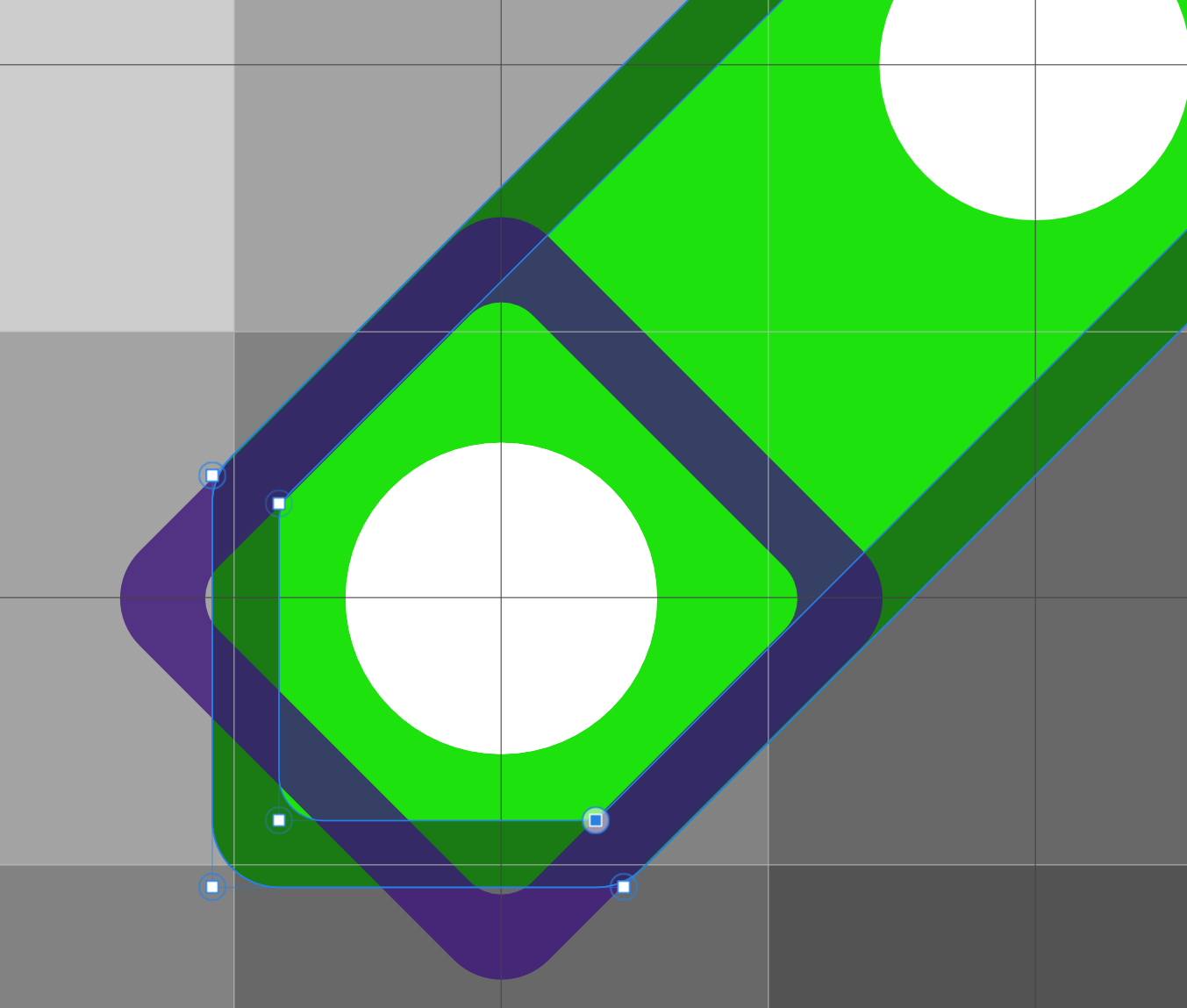
So, here's out boy now:

Next, I needs to prepare all unique frames for this piece. There can be at most 12 frames, but there can be less. There is no reason to draw repeating frames, and depending on the piece's symmetry there can be 2, 3, 4, or 6 truly unique frames before the repeats begin. Can even be just 1, if it's a perfect circle or a ball. That, however, doesn't give the best feedback to the user.
Anyway, in this case there are only 6 frames to draw. Which is the second worst option, but also is comfortable average in effort and complexity. To begin, I need to figure out the size of the spritesheet. Each frame on the sheet needs to have the same size, and each drawing must be centered around the middle of this frame size. This is a critical requirement, because it allows to simplify significantly how I rotate logical stuff, like connection points.
So let's assume it's a 3x3 area that we need for this piece. (3x3 referring to 3 by 3 units of the grid size; 96 pixels in my case). I center the piece against this area and rotate it to see if there is enough gap. Crucially, I don't actually care if it would fit for every degree of rotation. Only for 0, 30, 60, 90, etc — my precious 30 degree increments.
Alas, I can tell from this that 3x3 is not enough. It looks like it fits now, but you have to consider that we're about to make the piece "3D", i.e. thicker. I can tell you upfront that thickness requires at least 12 pixels of overhead, and we don't have it here. So I settle on the 4x4 frame size.
Next steps will require a lot of repetition, so it's a good point to cut down on that by preparing the shapes for upcoming transformations. Now, it is possible to prepare all visual necessities here and reduce the future repetition even further, but so far this is an unproven piece that needs to be tested, possible adjusted or outright removed. For that reason, it's unwise to design it with the finality in mind. It should stand out as a temp piece until I'm confident to move forward with it.
With that in mind, I'm still preparing the piece somewhat. Every piece needs 4 layers: two for the frame and two for the base. Each layer serves an important purpose and has unique styling. I wasn't able to reduce this number in any way or simplify this further. But it's fine. As an aside, when Graphite becomes more stable, a lot of this work can be done from just two shapes, fully procedurally.
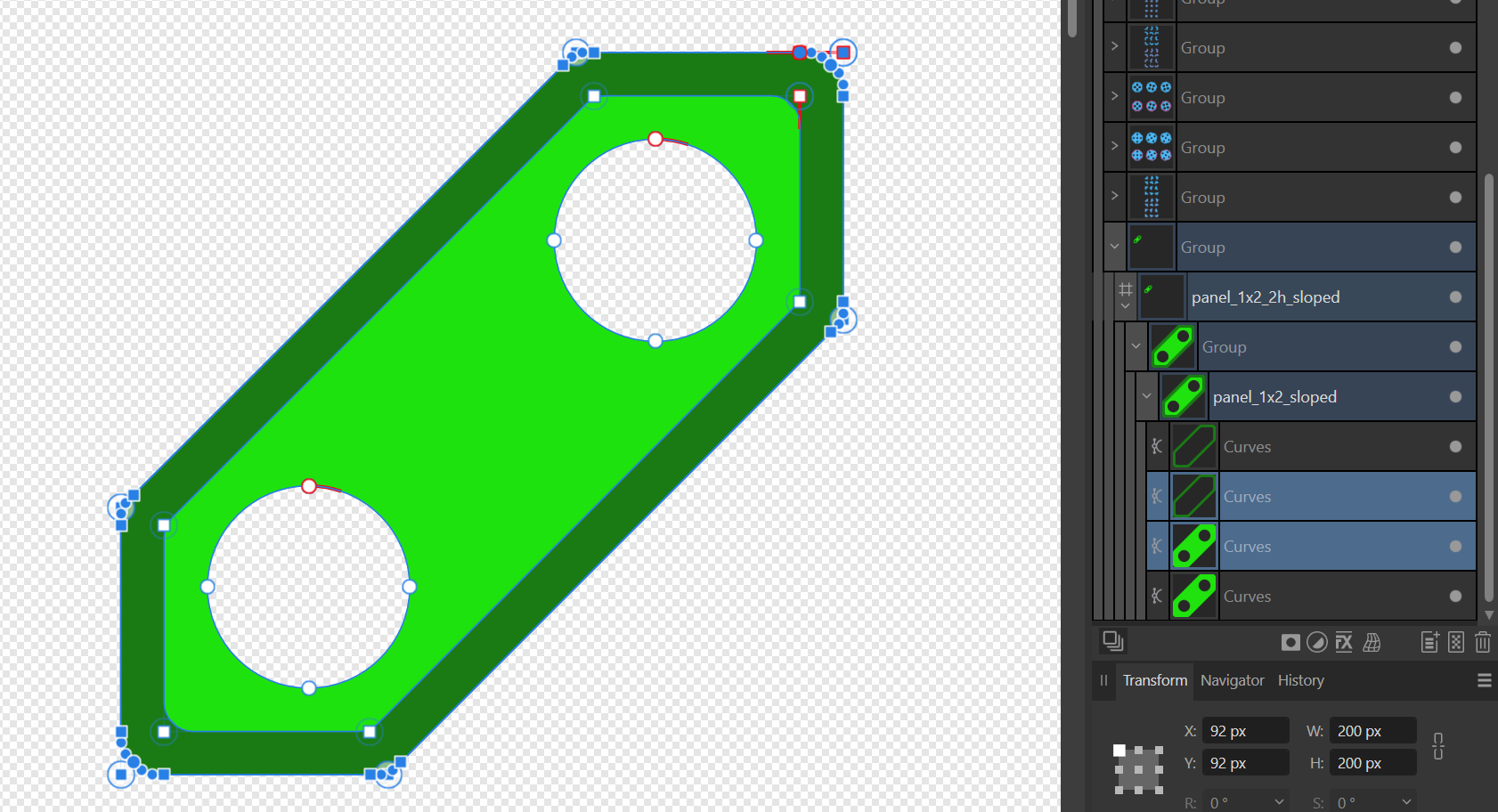
Besides duplicating the layers, I do one more thing. Two layers in the middle, the bottom/inside of the frame, and the top of the base, are selected and their outer points are moved slightly inwards. These layers are only used for the inside part of the piece, but can be visible outside as well. I can tuck them in later, but doing it this way now removes the need and saves a lot of time.
Okay, now it's time to duplicate the shape the necessary number of times, align copies on the grid, and rotate each of them by 30 degree increments. I rotate the entire shape of 4 layers together, and I do it now, before the thickness is added. This ensure everything is perfectly straight and aligned consistently.

To add thickness now I select the top 3 layers (both frame layers and the base top) on all frames, and move them together by 8 pixels up. Then I select only the frame top layers (on all frames again), and move them by another 4 pixels. Looks kind of 3D already!

Let me add a bit of color difference to make the thickness pop!

At this point the piece is ready to be exported and tested. This is enough to look approximately correct and for me to be able to configure its data. Ideally, final look pass happens later, after the piece has been incorporated and tested. For the sake of being done with the design side of things, though, let's go through the final steps immediately.
The piece needs to be colored in the specific shade of blue (other colors in the game are achieved using a hue shift with a shader). The frame can have the same blue color (plain, glass) or a complementing pink color (striped). Each of the 4 layers has a unique predefined style that I apply. Styles give the piece a smooth 3D appearance, and require no further adjustment after being applied. I could've done this earlier, but, again, temporary assets must look temporary so you don't forget to finish them.
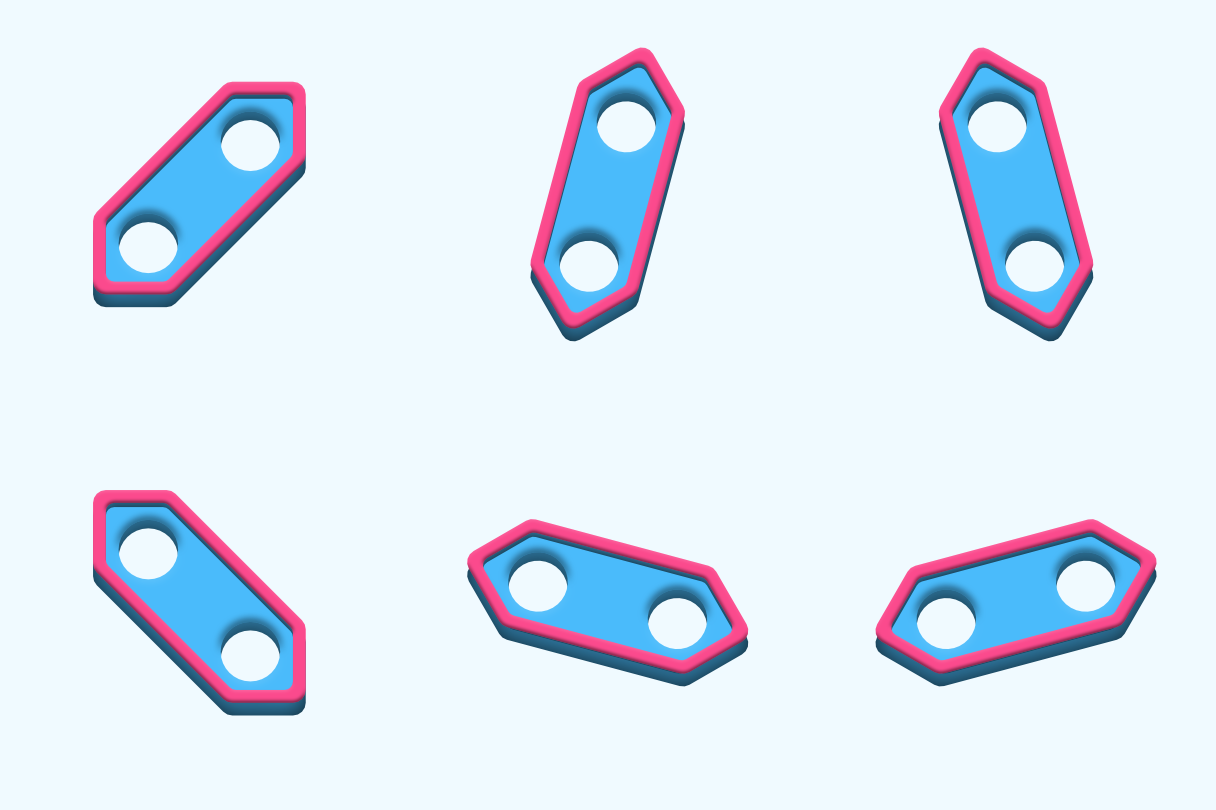
What I couldn't have done before the busywork required to make the shape complete. This is done entirely manually on each piece. First, I adjust the inside part of the frame on each side of the piece, to create a better separation between the frame and the base. This is sort of like adding ambient occlusion, I'd say. And then I adjust the shape of the base bottom to connect it on piece sides.
The final touch is what I like to call "blushing". I add these highlights around holes to give the shape a little bit more depth and texture. They are on the verge of being noticeable, but I find them essential here. Basically, I stamp the same highlight by copying and pasting it by eye.
And with that, the spritesheet is fully done.
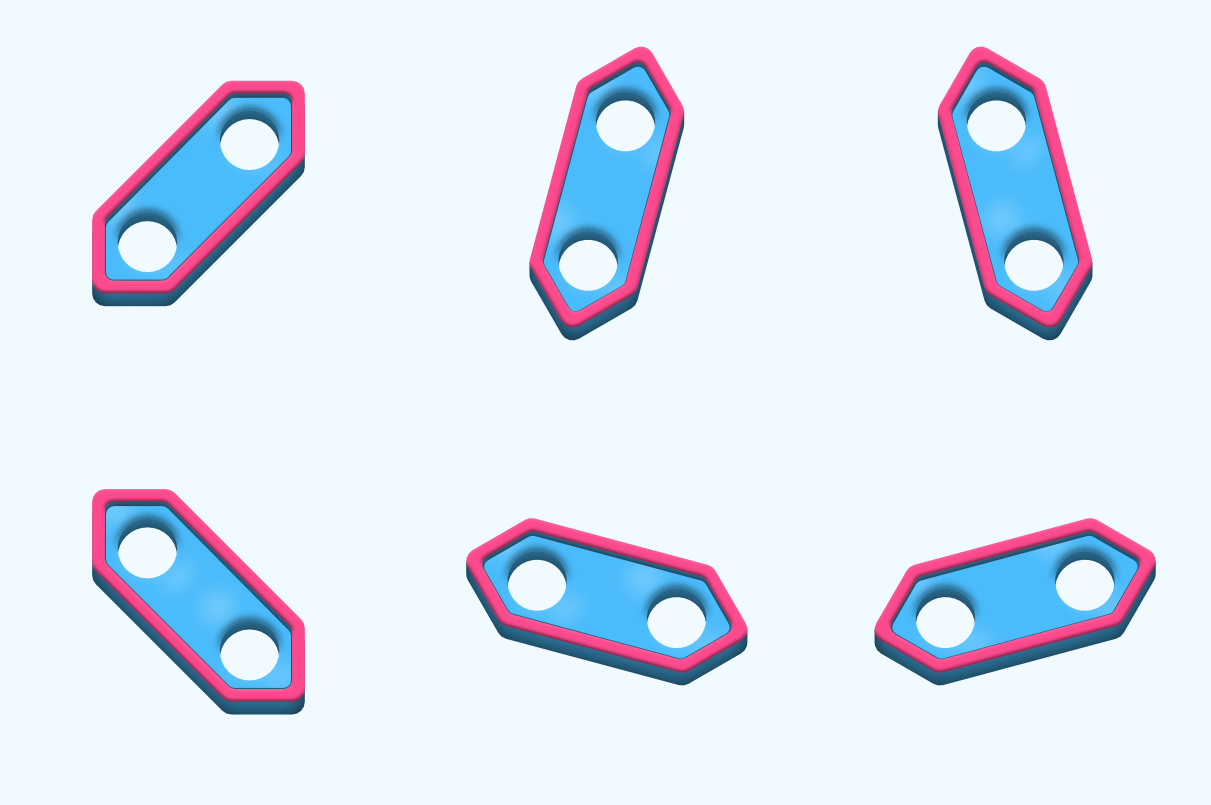
Time to jump into the Godot editor, and set the piece up!
# Configuring the piece
In my game, each piece has a rather extensive "definition" resource, called appropriately PieceDefinition. Within it, I outline logical parts that compose the piece: what texture it uses, what shapes it has for interaction, where connection points are, how shadow behaves, etc. Godot resources are perfect for that kind of stuff! I even use extra custom sub-resources to better compartmentalize some details, especially those that can repeat multiple times.
Here's just some of that data, as visible in the inspector:
In my early days, I would make an entire editor plugin with convenient tools and visualizations. I live for that kind of stuff. But in practice, going that hard into tools waste more of my time than it saves. In a team, that would be another story. As a solo developer, I learnt not to overengineer my tools these days. That doesn't mean I don't have them, though.
I often create special test scenes that can be used to interact directly with some object in my game. These scripted Godot scenes expose properties to control parameters I'm testing, while fabricating controlled and specific scenarios that focus on aspects I want to test or design. Since I rely on resources, I can immediately edit the data and the test scene will update to visualize it. Data-driven design truly rocks here!
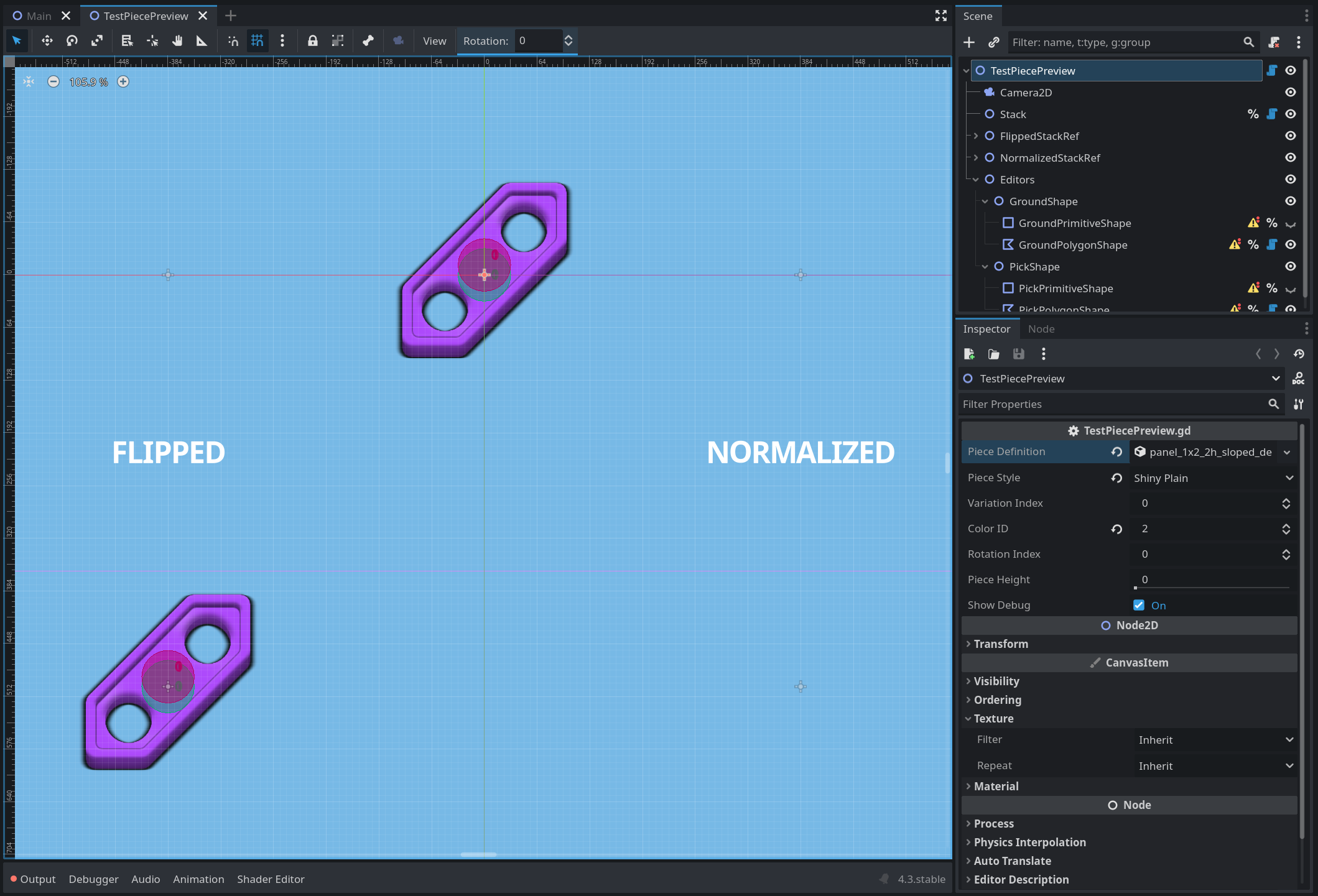
You might've also spotted a cheeky "rotation" widget at the top of the viewport, which is certainly not standard for the Godot editor. Indeed, it's a custom tool that I add to the toolbar directly from this test scene. I often need to test how the piece behaves in different rotations as I work on it, and scrolling up and down the inspector to adjust it is a big pain point. So I developed a hack: the scene creates an editor plugin instance on the fly and adds a widget to the toolbar using it.
This happens when the scene enters the tree (i.e. when the scene's tab in the editor is activated), and when the scene exits the tree I clean up and remove everything. I could've made a proper editor plugin, but then I'd need to somehow detect if the correct scene is being edited, and then I'd need to hook into it. Here, the whole thing is localized and transparent. The scene owns the plugin and all interactions are direct. I could've added inspector plugins or gizmos this way too if I wanted — just for that one scene.
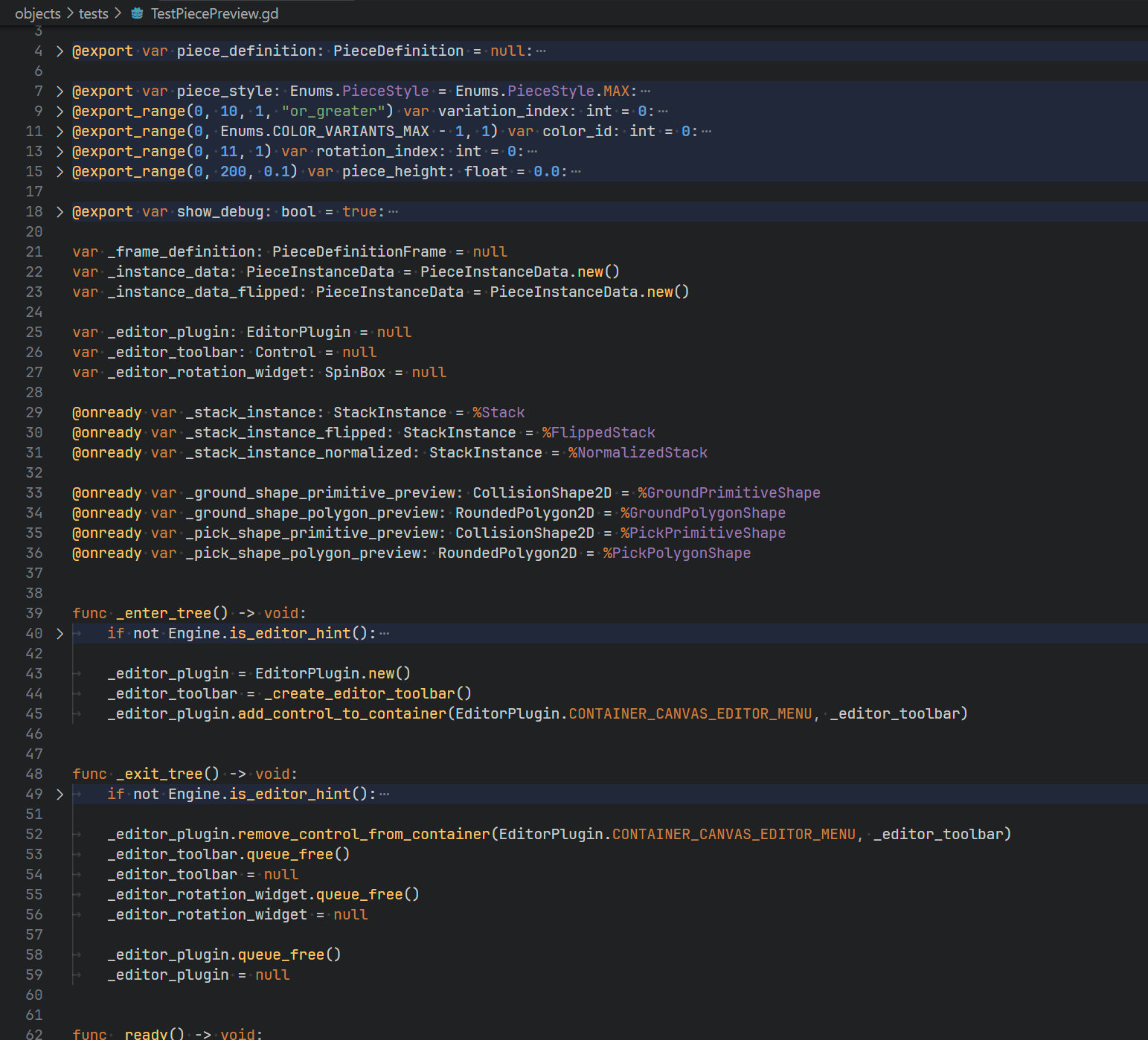
A lot of the configuration data is just enums and numbers, or textures which I can drag'n'drop. Results of these changes are either immediately visible or are tested with dynamic adjustments. Other data entries are more interesting. Connection points, for example, have a position and a shape, and are defined once but visualized twice — one for the top, and one for the bottom side. Thanks to the grid alignment, most of the time positional values can be simply entered, with no fine-tuning necessary.
As mentioned early on in this article, piece can flip, but flipping is achieved through rotation. Meaning, I manually configure which of the existing rotation frames would be a match for the current frame, should be want to "flip" it upside down. It works perfectly, and if done correctly, "flipped" pieces rotate as continuously as the piece in the normal state. You can spot this by looking at connection indices as the piece rotates. If each connection point completes a circle, then the configuration is done right.
But this is mostly just debug drawing. This testing scene also has an actual tool that helps me build collision shapes quickly. While rough shapes for a lot of pieces could've been defined with simple shapes and trivial polygons, I needed collision shapes that follow the shape of the piece closely, for a number of reasons. And that means that collision shapes need to have detailed, rounded corners.
Defining such corners by hand, for all the pieces, all rotation states of pieces — that would be a very tiresome and boring task, and it would take a while. So instead, I extended CollisionPolygon2D with extra properties that allow me to define the rough, rectangular shape, and rounded corner radius, and the attached script will compute the final polygon for me. It took a whole workday to do, but that was a small price to pay for such a useful tool!
I even added a handful of helpful transformation actions, since all rotation states are well defined. Note, that I use Godot 4.3, so I don't have tool buttons that more modern version of the engine have. But an exported boolean that is never actually set does the same job, essentially. Just not undo-redo friendly, I guess.
With these actions I can take the straight shape, that is the easiest to outline, and then quickly rotate it to match the piece. Then it's just a couple of adjustments to a vertex here or there to finalize the rotation. Flipping can be used to save a lot of time on top of that, because many rotated shapes are actually mirror copies of other shapes.
And that's how I do it, pretty much!
# In game
Code-wise, I only need to add to the PieceType enum and then add the new definition to the piece library manager. And then it's in game, ready for stacking!
Hope this is insightful and/or helpful! Let me know if you have any questions, and cheers <3
Loading comments and feedback...